- acessibilidade-apple”>Understanding Acessibilidade Apple
- Vision Accessibility Features
- VoiceOver: The Ultimate Screen Reader
- Zoom: Screen Magnification Made Easy
- Display Settings
- Speak Screen and Speak Selection
- Hearing Accessibility Features
- Hearing Aid Compatibility
- Live Listen
- Sound Recognition
- Closed Captions and Subtitles
- Motor Accessibility Features
- AssistiveTouch: A Touch-Free Solution
- Switch Control
- Cognitive Accessibility Features
- Guided Access
- Screen Time Management
- Siri: Voice Control Made Simple
- Additional Features for General Accessibility
- Dark Mode
- Text-to-Speech for Emails and Texts
- Apple’s Accessibility Shortcut
- Accessing Apple’s Accessibility Features
- Conclusion
Acessibilidade Apple: Must-Have Features for Effortless Use
Acessibilidade Apple encompasses a wide range of features designed to make devices more user-friendly for individuals with varying abilities. As technology evolves, the need for inclusivity becomes increasingly vital. Apple has positioned itself as a frontrunner by integrating innovative tools that facilitate seamless interaction for everyone, regardless of their physical or cognitive challenges. In this article, we will explore essential accessibility features within the Apple ecosystem, guiding you toward a more effortless and enjoyable user experience.
Understanding Acessibilidade Apple
Accessibility features are not just an afterthought in Apple products but rather a core part of their design philosophy. By employing thoughtful technologies, Apple aims to ensure everyone can access and enjoy its devices, making technology more equitable. Whether you are someone with a disability or simply seeking tools to enhance your user experience, these features can significantly improve interaction with devices.
Vision Accessibility Features
VoiceOver: The Ultimate Screen Reader
VoiceOver stands out as one of the most notable features in the Apple accessibility suite. It is a sophisticated screen reader that transforms the way visually impaired users interact with their devices. By describing aloud what is on the screen, VoiceOver enables users to navigate effortlessly through apps, menus, and web pages.
Features of VoiceOver:
1. Gestural Controls: Users can navigate using simple gestures rather than complex commands.
2. Braille Display Support: VoiceOver supports various braille displays, allowing individuals who are deafblind to access content easily.
3. Rotor Function: This feature provides users with customization options, allowing them to scroll through text or navigate links quickly.
Zoom: Screen Magnification Made Easy
Zoom is an incredibly user-friendly feature that allows users to magnify their screens up to 15 times. This is particularly beneficial for those with low vision. Unlike basic zoom features found in other services, the Apple Zoom functionality provides options for enhanced clarity and navigability.
Key Aspects of Zoom:
– Full-Screen or Window Zoom: Users can choose to zoom the entire screen or just a section, providing flexibility based on personal needs.
– Adjustable Magnification Levels: Users can easily adjust the level of magnification with simple gestures.
Display Settings
Apple offers various display settings to enhance visibility. Users can invert colors, adjust contrast, or enable grayscale options to suit their visual preferences. This can make a substantial difference for individuals with color blindness or other visual impairments.
Speak Screen and Speak Selection
The Speak Screen feature allows users to swipe down with two fingers and hear the content of their screen spoken aloud. Similarly, Speak Selection lets users highlight specific text and have it read aloud. These features are essential for individuals with reading disabilities or visual impairments.
Hearing Accessibility Features
Hearing Aid Compatibility
Apple devices are designed to work seamlessly with hearing aids. By integrating direct streaming from compatible hearing aids to devices, Apple offers users a richer audio experience. This compatibility enhances conversations, media playback, and other audio interactions, making them more enjoyable.
Live Listen
With the Live Listen feature, users can turn their iOS device into a remote microphone for their hearing aids. This can be particularly useful in noisy environments where understanding speech can be challenging.
Sound Recognition
Apple devices can identify specific sounds, such as alarms, doorbells, or crying babies, and alert users accordingly. This feature is invaluable for individuals who are hard of hearing and need assistance with environmental sounds.
Closed Captions and Subtitles
For those who are deaf or hard of hearing, closed captions and subtitles provide essential access to video content. Apple ensures that many apps and services support this feature, offering customizable text size and style for optimal readability.
Motor Accessibility Features
AssistiveTouch: A Touch-Free Solution
AssistiveTouch is a powerful feature that helps individuals with limited motor skills to use their devices without physical buttons. By allowing users to create custom gestures and access a menu of functions with a single tap, AssistiveTouch significantly enhances the usability of Apple products.
Custom Functions of AssistiveTouch:
– Custom Gestures: Users can create gestures for complex commands that may be difficult to perform physically.
– Device Controls: Easily access features like Control Center, Notifications, and more without relying on physical buttons.
Switch Control
Switch Control is a revolutionary tool for users with severe physical disabilities. It allows users to interact with their devices using switches—these can be physical buttons or even facial expressions. Switch Control offers an innovative approach using scanning menus to navigate through apps and settings.
Cognitive Accessibility Features
Guided Access
Guided Access allows users to stay focused on a specific app by limiting interaction with other features. This is particularly beneficial for individuals with cognitive impairments, as it prevents distraction and enhances concentration.
Screen Time Management
The Screen Time feature helps users monitor their device usage and set limits if necessary. For individuals with cognitive challenges, this can assist in creating healthy technological habits and improve overall wellbeing.
Siri: Voice Control Made Simple
Siri, Apple’s virtual assistant, simplifies various tasks through voice commands. For users who may have difficulty with manual input, Siri provides an effortless way to send messages, make calls, or set reminders without needing to navigate through the interface.
Additional Features for General Accessibility
Dark Mode
Dark Mode not only offers a visually appealing interface but also reduces eye strain. For users who find bright screens uncomfortable, switching to Dark Mode can create a more pleasant reading experience.
Text-to-Speech for Emails and Texts
Users can employ text-to-speech functions to read emails and messages aloud, ensuring that they don’t miss important information. This feature especially benefits users with reading disabilities or visual impairments.
Apple’s Accessibility Shortcut
By enabling the Accessibility Shortcut, users can quickly access their preferred features like VoiceOver, Magnifier, or AssistiveTouch. This can be done by triple-clicking the side button, making it easier for users to toggle features on and off.
Accessing Apple’s Accessibility Features
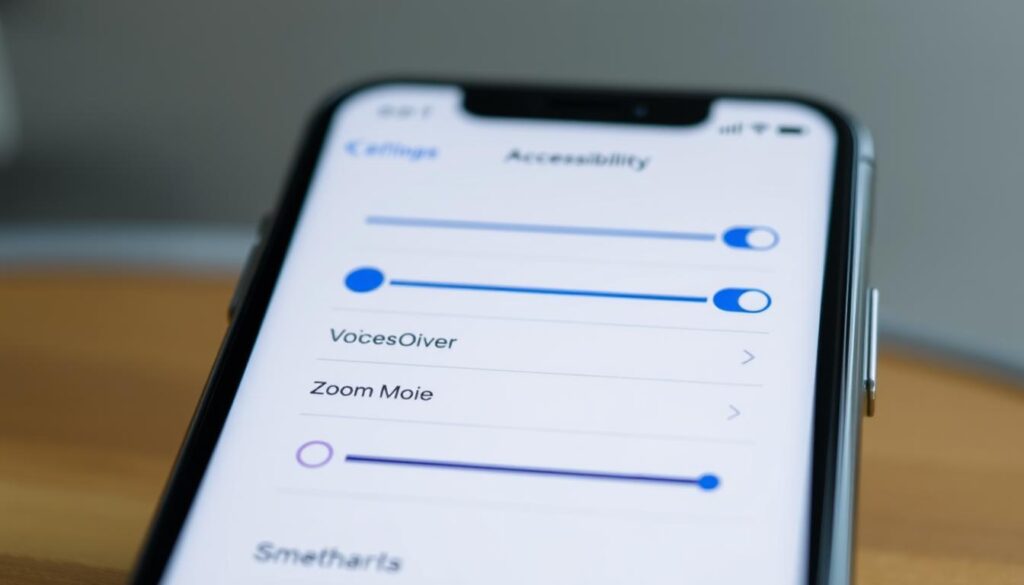
Finding and enabling accessibility features on Apple devices is straightforward. Users can navigate to:
1. Settings
2. Accessibility
Within the Accessibility menu, users will find a comprehensive list of all available features. Each feature comes with detailed customization options, allowing users to tailor settings to match their individual needs.
Conclusion
Acessibilidade Apple is a testament to the company’s commitment to creating a more inclusive technological landscape. The various features discussed here are not limited to individuals with disabilities; they can enhance the user experience for everyone. By leveraging these tools, users can navigate the digital world with ease, making technology a beneficial ally rather than an obstacle.
Whether it’s by enabling VoiceOver to navigate apps, using AssistiveTouch for easier interaction, or setting up sound notifications, Apple’s features cater to a wide range of needs. As technology continues to advance, the importance of accessibility will only grow, and Apple is leading the charge in making digital experiences enjoyable for everyone.
By understanding and utilizing these accessibility features, users can take full advantage of their Apple devices, fostering a more connected and engaged community. So why not explore these tools today? You may find that they enhance your experience in ways you never imagined!